an overview
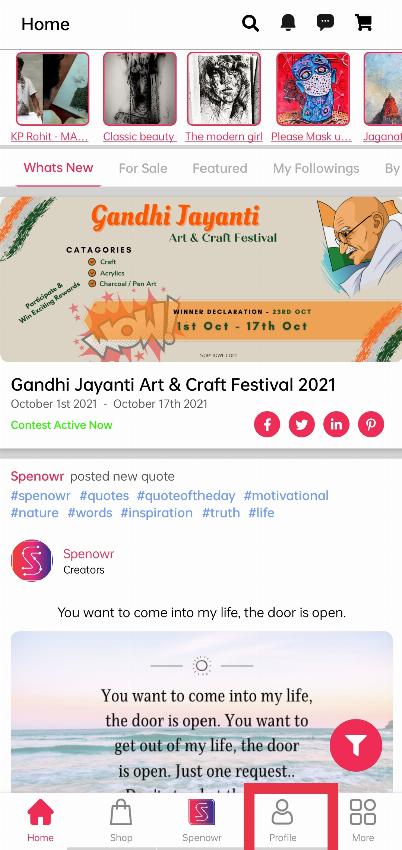
When you log in, you will see your home screen(What's new). Click on the ‘Profile’ option to see your profile.
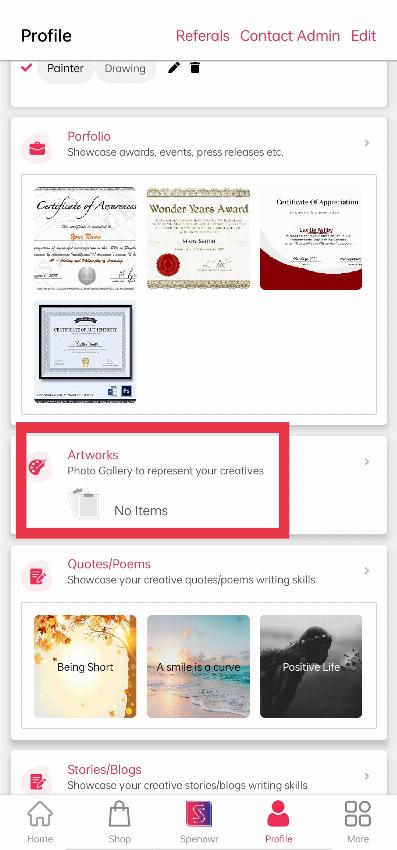
When you click on Profile, you will see your Profile, under that click the "Artwork" section(scroll down)to add your artworks.
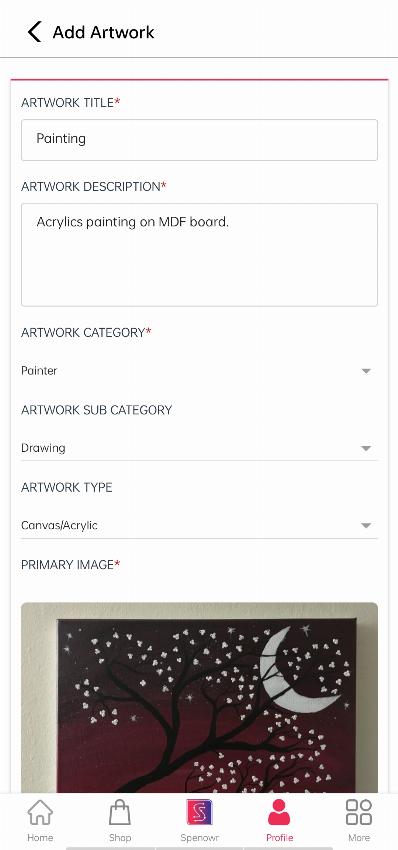
By clicking on ‘+’ you will find these empty fields, where you can add your artwork by adding the content and details about it.
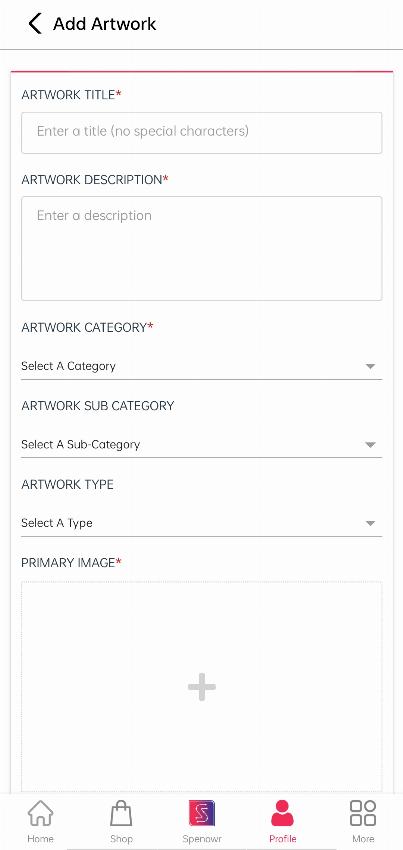
Let’s discuss each one briefly so that it will be easy for you to understand the priority of each field or you can follow the below images and try to understand yourself.
ARTWORK TITLE: Here you can add a good title of your artwork which will bring the audience’s attention to your artwork.
ARTWORK DESCRIPTION: Here you can add a description of your artwork briefly.
CATEGORY: Here you will find a drop-down with many options. Choose the category which fits your topic.
SUB-CATEGORY: Here also you will find a drop-down with many options. choose the sub-category under your category by analyzing your artwork.
TYPE: Choose your artwork type here.
ARTWORK PRIMARY IMAGE: Put a good image that will be exaggerating your artwork, as it will be shown in the list page where your audience will click on this to open your product.
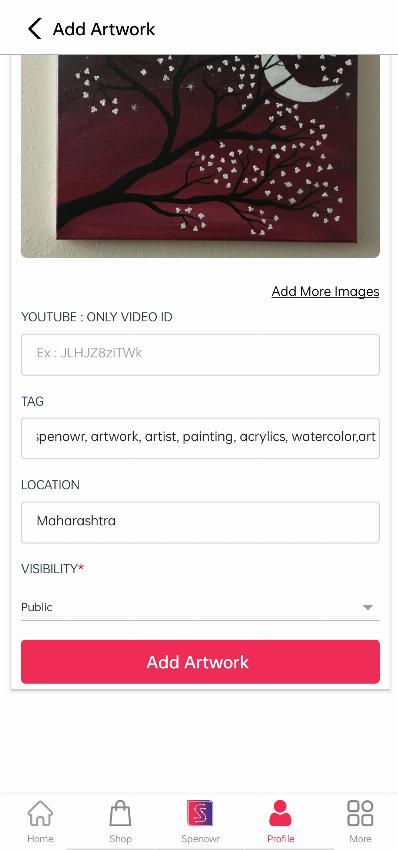
TAG: Write hashtag here
LOCATION: You can write your address here.
VISIBILITY: You can choose public because if you choose public your artwork is visible to all.
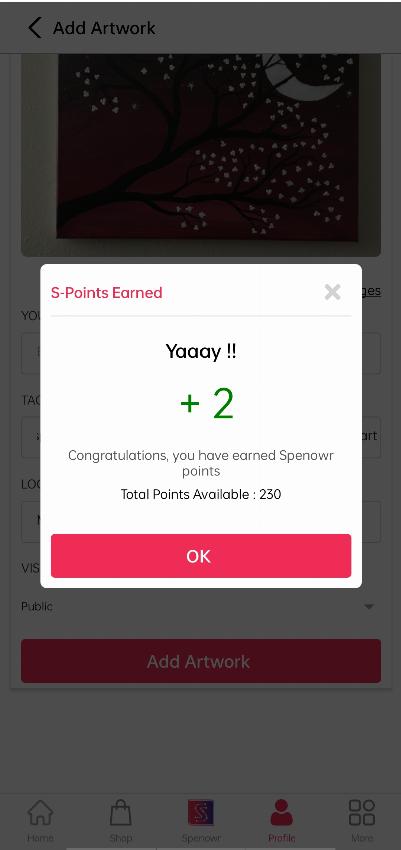
You will get some Spenowr points & by clicking on “OK’ your artwork listed here.
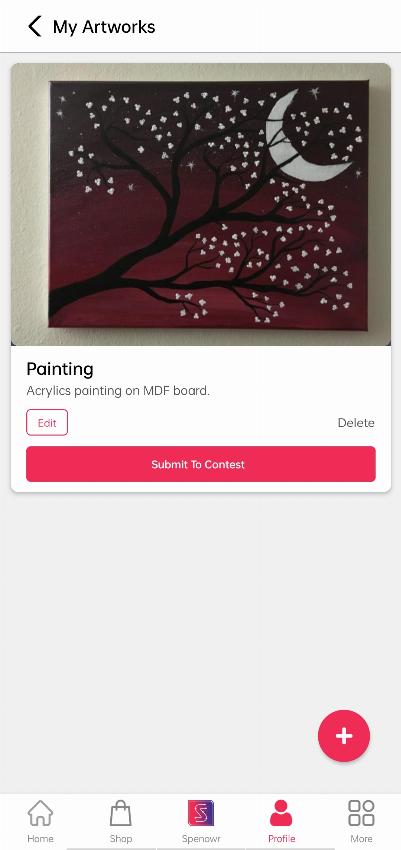
By clicking on the “Submit to contest” button you will see one popup window. Click the recent contest & choose your category.
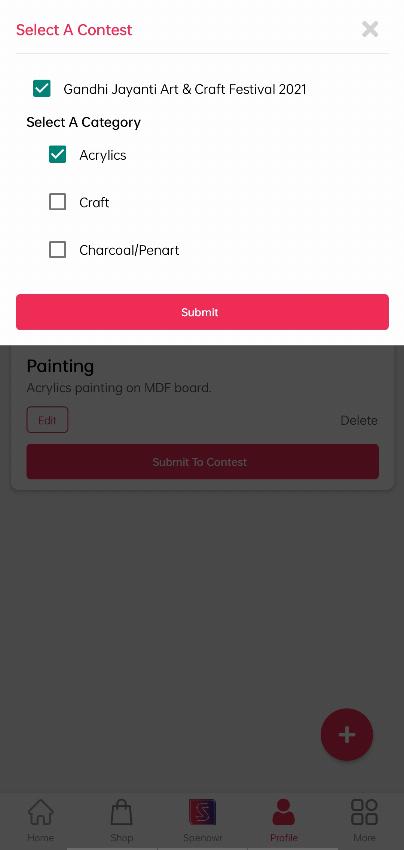
By clicking on the “Submit” button you will get some points & you will see your artwork participated in the contest.
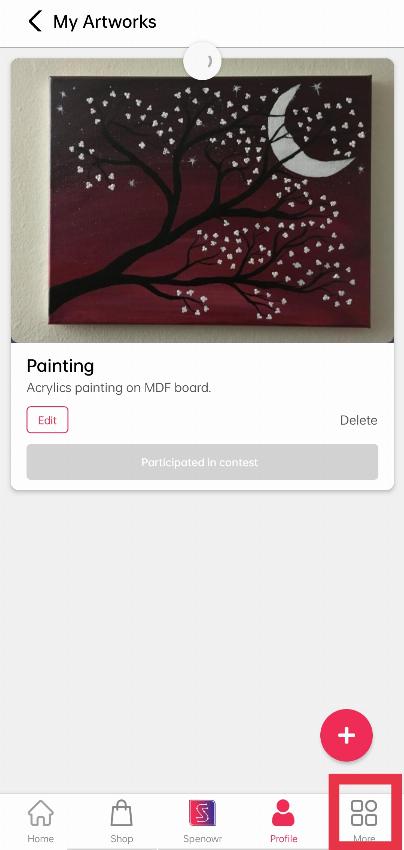
Click on the “MORE” button on the bottom bar to find out your recent contest details.
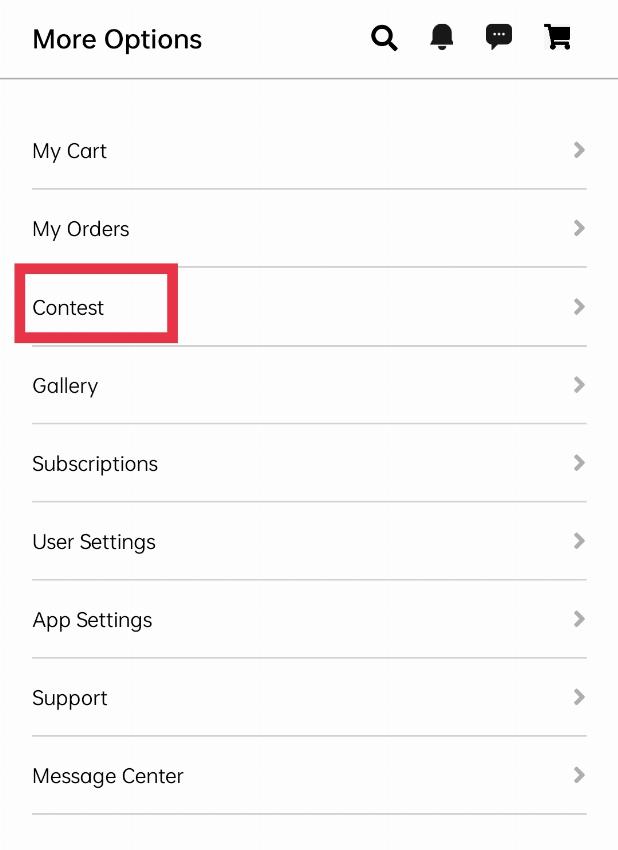
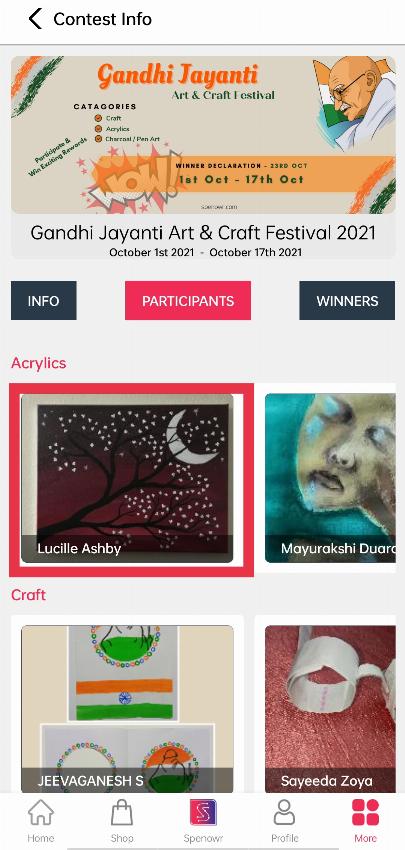
By clicking the recent contest image you will get two tabs. One is “Info” & the other one is “Participants”.
By choosing the “Participants” button you can see your artwork in the participant's list.
Note: If you don’t want to fill all the fields, just try to fill the mandatory fields (Red-stared), as without filling them you can’t add your product.